Avada Thumbnail Slider
Cart

Avada Thumbnail Slider
$30.00




Avada Thumbnail Slider Demo
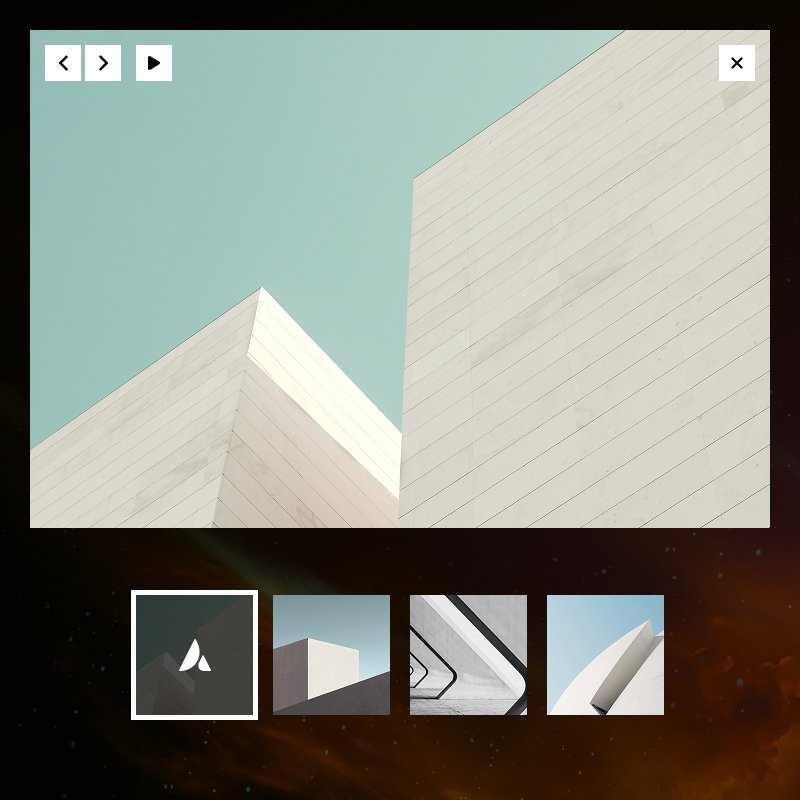
If you build sites with Avada and Avada Builder, you know how powerful the ecosystem is but sometimes you need a dedicated component that fits a specific pattern. The Thumbnail Slider for Avada Builder is a purpose-built element that adds a professional, thumbnail-driven image slider directly into your builder. It combines a large main slider with a clickable strip of thumbnails below, so visitors can jump to any slide at a glance. This plugin offers: seamless Avada Builder integration and Live preview to design controls and performance.
Builder Integration and Workflow
This add-on comes with parent and child based settings. You add Thumbnail Slider Element to your page using Avada Builder, then add slides either one-by-one or in bulk.
In the Back-End Builder, the element appears in the element list like any other Avada element. The General tab includes a Bulk Image Upload control: select multiple images from the Media Library and they are turned into individual Thumbnail Slide children automatically. Each slide stores its image URL and attachment ID, so Avada’s responsive and lazy-loading behavior applies. You can re-order slides via the Children tab and edit each slide’s image in place.
In Avada Live Builder, the same workflow is available with one important option: a Bulk Add button is injected into the Children tab so you don’t have to switch to General to upload multiple images. The button appears next to “Add Thumbnail Slide” and triggers the same multi-image flow.
Core Features
Dual Slider Layout
Main slider plus thumbnail strip, synced so clicking a thumbnail changes the main slide.
Bulk Image Upload
Add many slides at once in both Back-End and Live Builder (General and Children tabs).
Pixel-Perfect Design Tab
We’ve developed the most essential styling options for the main image so you can maintain design consistency with the Image Element of Avada Builder.
Professional Hover Effects
Choose from three performance-optimized hover animations that make your projects feel interactive.
- Full Avada Live Builder support – Edit in real time; shortcode and slides stay in sync when adding slides or uploading images.
- Swiper.js engine – Touch-friendly, responsive, with slide, fade, coverflow, and flip effects.
- Autoplay and speed controls – Configurable slideshow speed and transition speed.
- Lightbox – Optional iLightbox integration for full-size images (main slider only).
- Smooth height – Optional smooth height transitions when slide images have different aspect ratios.
- Design controls – Slider width, margins, custom nav icons, thumbnail height (auto or fixed), border size/color, inactive opacity, active border color.
- Responsive and accessible – Works across devices; visibility options (hide on small/medium/large).
- Animation and extras – Fusion Builder animation options; custom CSS class and ID.
- Clean shortcode output – Parent/child shortcodes (
fusion_thumbnail_slider/fusion_thumbnail_slide) that save and restore correctly in Live Builder.
Builder Integration and Workflow
The plugin registers two elements with Fusion Builder: Thumbnail Slider (parent) and Thumbnail Slide (child). You add one Thumbnail Slider to a column or container, then add slides either one-by-one or in bulk.
In the Back-End Builder, the element appears in the element list like any other Avada module. The General tab includes a Bulk Image Upload control: select multiple images from the Media Library and they are turned into individual Thumbnail Slide children automatically. Each slide stores its image URL and attachment ID, so Avada’s responsive and lazy-loading behavior applies. You can reorder slides via the Children tab and edit each slide’s image in place.
In Avada Live Builder, the same workflow is available with one important addition: a Bulk Add button is injected into the Children tab so you don’t have to switch to General to upload multiple images. The button appears next to Add Thumbnail Slide and triggers the same multi-image flow. Because the plugin keeps the parent’s element_content in sync with the Backbone children collection and overrides shortcode generation, adding or editing slides (including after an image upload) never wipes existing slides—the saved shortcode always includes all slides in the correct
Slider Behavior and Options
Under the hood, the slider uses Swiper.js: a modern, touch-enabled library that handles responsiveness and keyboard navigation. The main area shows one slide at a time; the strip below shows thumbnails (cloned from the same slide content, with builder UI stripped in Live so the strip stays clean and clickable).
Autoplay can be turned on or off. When enabled, Slideshow Speed (default 7000 ms) controls the delay between slides. Transition Effect offers Slide, Fade, Coverflow, and Flip. Transition Speed (default 800 ms) sets how long the effect takes. Smooth Height optionally animates the main slider’s height when moving between images with different aspect ratios, which keeps layout from jumping.
Lightbox is a yes/no option. When “Yes,” the main slider wraps each image in an Avada lightbox link so users can open the full-size image in the theme’s lightbox (iLightbox). The thumbnail strip does not use lightbox, so clicking a thumbnail only changes the main slide.
Slider Width accepts any CSS width (e.g. 500px, 100%). The container is constrained to this width and centered by default; Margin (top, right, bottom, left) lets you space it within the layout.
Design and Thumbnail Styling
The Design group gives fine-grained control over look and feel. Previous/Next Arrow Icons use Avada’s icon picker so you can match your site’s style (e.g. chevrons, arrows, or custom icons).
Thumbnails are fully styleable. Thumbnail Height can be Auto (based on image) or Fixed (px); in fixed mode, Thumbnail Height (px) (e.g. 40–200) sets a consistent height—useful in Live Builder where you want a stable strip. Thumbnail Border Size (0–20 px) and Thumbnail Border Color apply to each thumb. Thumbnail Opacity (0–1) sets the opacity of inactive thumbnails; the active one is typically full opacity. Active Thumbnail Border Color highlights the current slide in the strip. All of these are exposed as CSS variables and data attributes so the front-end and Live Builder stay in sync.
Element Visibility uses Avada’s standard visibility options so you can hide the slider on small, medium, or large viewports. CSS Class and CSS ID allow custom styling or scripting. The element also supports Fusion Builder animation (e.g. fade in, slide in) with the container as the preview selector.
Live Builder: How It Stays Reliable
Avada Live Builder renders the page in an iframe and manages elements with Backbone views and models. The Thumbnail Slider plugin extends Fusion’s parent and child element views so that:
- Shortcode content is never lost. The default Fusion behavior builds
element_contentfrom the DOM. This plugin’s slider replaces slide markup with cleaned clones (no builder classes) for a correct preview, so the default logic would see no children. The plugin overrides updateElementContent and getContent to build content from the child models (and their shortcodes) instead. It also keepselement_contentin sync whenever the children collection changes (add, remove, change). So when Fusion (or the column) serializes the page, it reads the model and gets the full list of slides every time—no self-closing shortcode, no missing slides after an image upload. - Bulk Add in the Children tab. Fusion’s template only shows the bulk button for core elements like the gallery. The plugin injects a “Bulk Add” button next to “Add Thumbnail Slide” when the settings modal opens and re-injects it after any add/remove/sort so it doesn’t disappear when the tab re-renders. Scheduling uses a double requestAnimationFrame so the button reappears right after Fusion’s paint, avoiding a visible flash.
- Swiper in the iframe. Initialization runs in the preview iframe when the container is there, so autoplay, smooth height, and effects match the final front-end. Before re-renders, the plugin destroys existing Swiper instances and re-inits so options stay correct.
Together, this makes the Thumbnail Slider feel native in Live Builder: add slides, upload images, reorder, change options—everything saves and previews correctly.
Use Cases
- Portfolios and galleries – One main image with a thumbnail strip for quick navigation.
- Product imagery – Multiple product photos with a thumb strip, optionally with lightbox for zoom.
- Testimonials or team – Photos with optional captions or overlay content in future iterations.
- Landing and marketing pages – Hero or feature sliders with a clear “choose your slide” strip.
- Any Avada page – Drop the element into a column, bulk-upload images, and adjust design options to match your theme.
Technical Notes
The plugin depends on Fusion Builder (and thus Avada). It bundles Swiper (JS and CSS) and enqueues them on the front-end and in the builder where needed. Shortcodes are fusion_thumbnail_slider (parent) and fusion_thumbnail_slide (child). The PHP element class extends Fusion_Element, uses Fusion’s attribute and visibility helpers, and integrates with Fusion Library for images (responsive markup, lazy loading, attachment data). The front-end template and a custom settings view script provide the Live Builder behavior; a single shared “inject bulk button” function and one global modal-open listener keep the code lean and avoid duplicate listeners when multiple sliders exist on the page.
Installation and Requirements
Install the plugin from the WordPress admin as a plugin. Avada and Avada Builder must be active; if Avada Builder is missing, the plugin shows an admin notice and does not load the element. The plugin uses its own copy of Swiper, so it does not conflict with other slider scripts. After activation, the Thumbnail Slider element appears in the Avada Builder element list alongside other native elements, ready to drop into any page or template.
Summary
Thumbnail Slider for Avada Builder adds a full-featured, thumbnail-driven image slider that fits naturally into Avada’s builder and theme. It covers the full workflow: bulk upload in Back-End and Live Builder, synced main + thumbnail strip, multiple transition effects, autoplay, lightbox, smooth height, and detailed design controls. Robust shortcode handling and careful Live Builder integration ensure that what you build is what gets saved—so you can focus on content and design instead of fighting the builder.